Table of Contents
How To Download and Setup The Liberty Photo App for Android
To view the companion video for the following article, please visit the following page:
How To Download and Setup the Liberty Photo App for Android Video
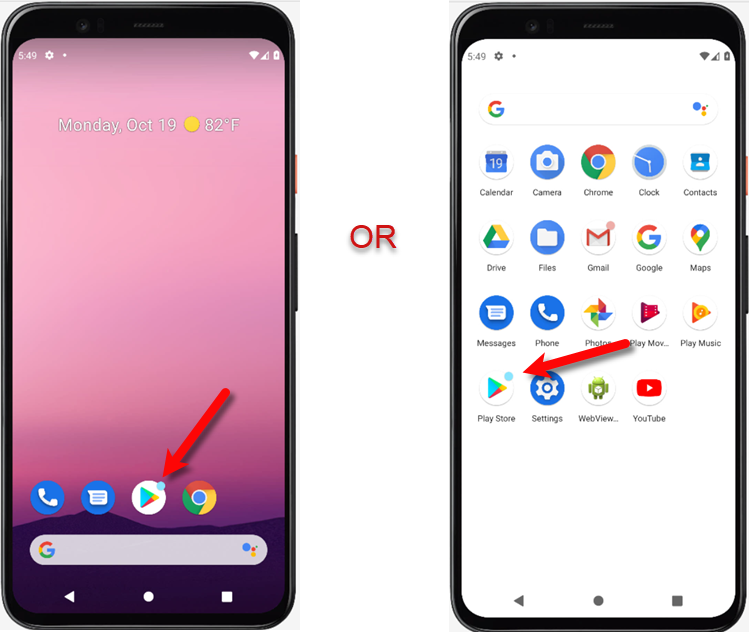
- Open the Google Play Store app from either your Android device’s Home Screen or App Locker.
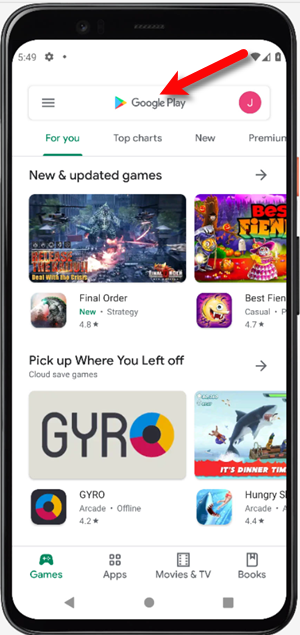
- Click the Google Play bar at the top to initiate the Search screen.
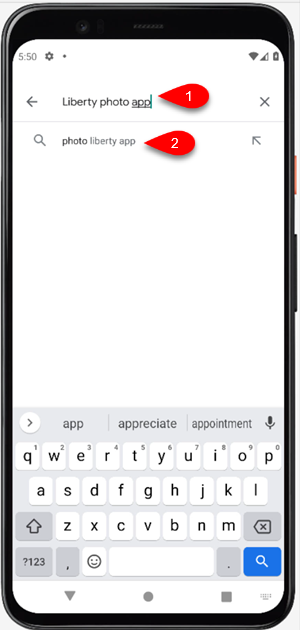
- Search for Liberty Photo App in the search box and then tap the first entry that appears.
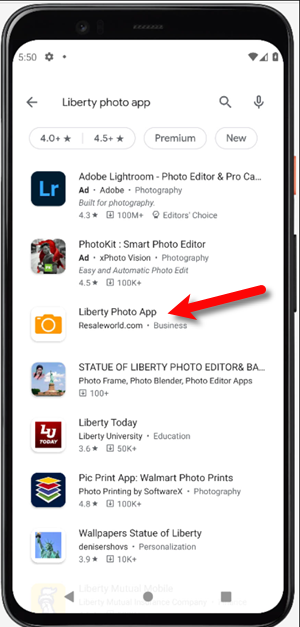
- Tap the Liberty Photo App option.
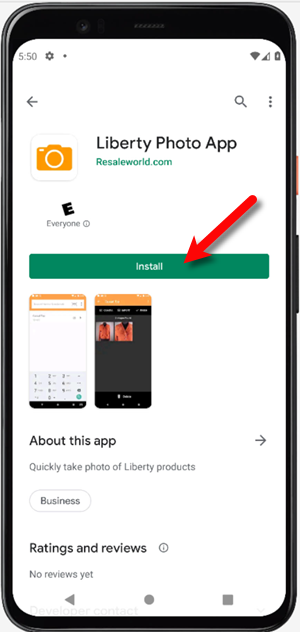
- Tap the Install button.
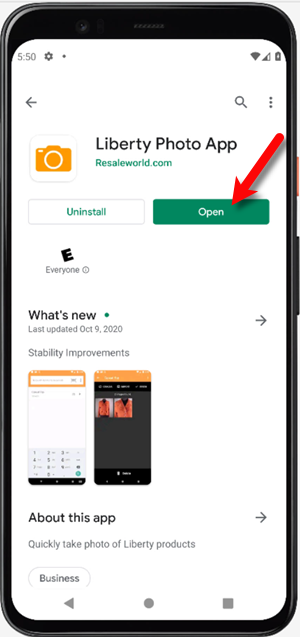
- Tap the Open button.
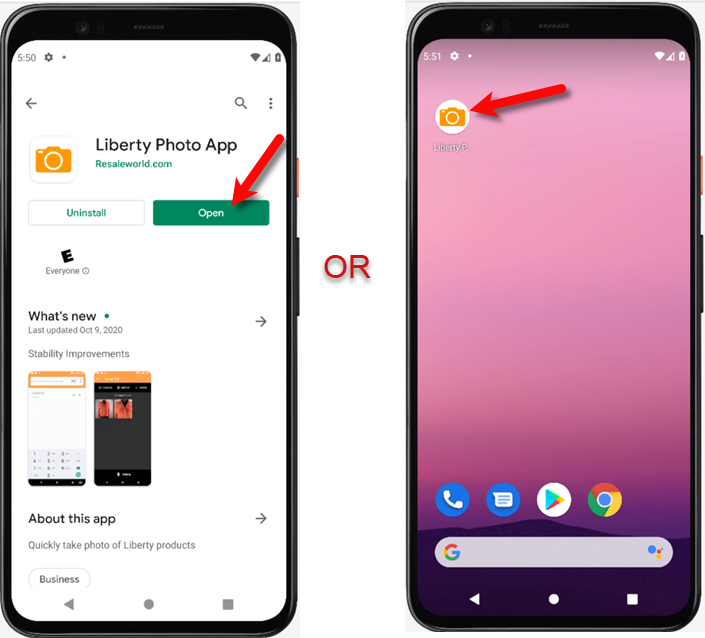
- You can now either open the Liberty Photo App from the Google Play Store or from your Android device’s Home Screen or App Locker.
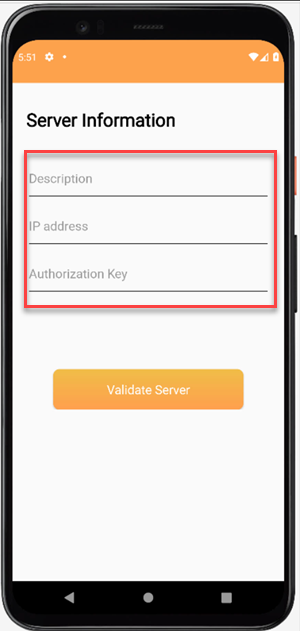
- We will now need to grab some information from your server computer in order to fill in the following information.
9.
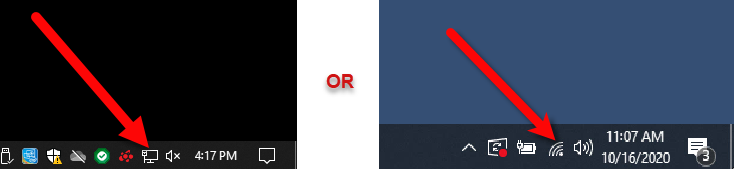
Depending on if you are on wireless or a fixed ethernet connection, you will either click on the Wireless symbol or the Network symbol located at the bottom right hand of your screen. You may need to click the up ^ symbol if you don’t see it, in order to see other running apps on your computer.
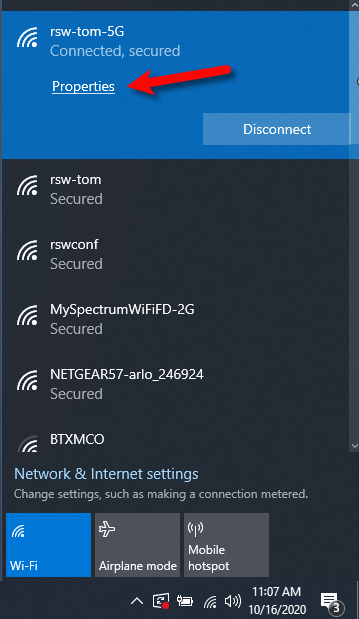
- Click on the Properties link.
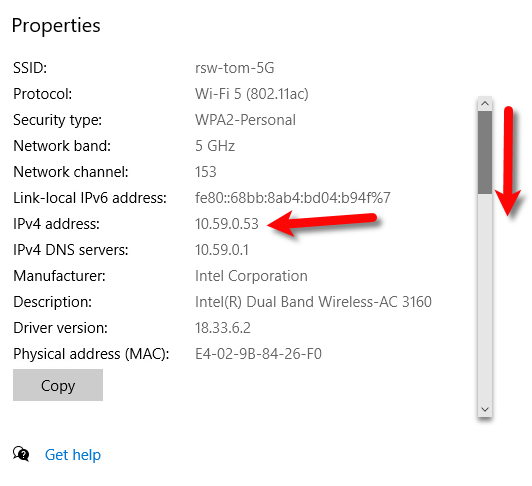
- Make a note of the IP Address that is associated with your computer. This is required so that your iDevice knows how to connect to your server computer.
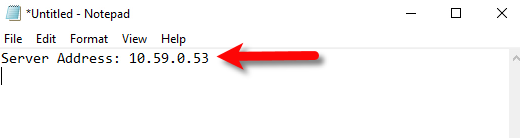
- You can use a program like Notepad or good old pen and paper to write down what you need to remember.
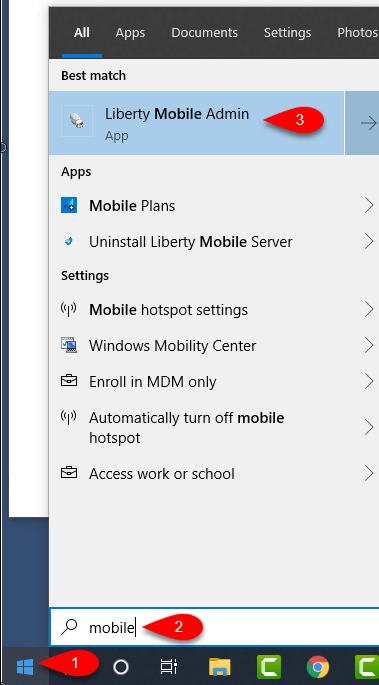
- Next, click the Start menu, then type Mobile and click on the Liberty Mobile Admin application or press the Enter key.
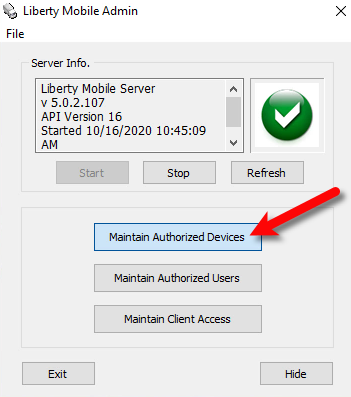
- Click the Maintain Authorized Devices button.
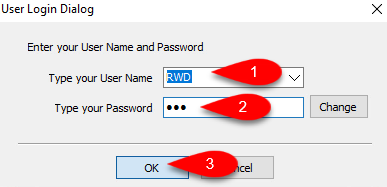
- You will get a User Login Dialog window, you must sign in using your Admin login, otherwise the application will not let you log in.
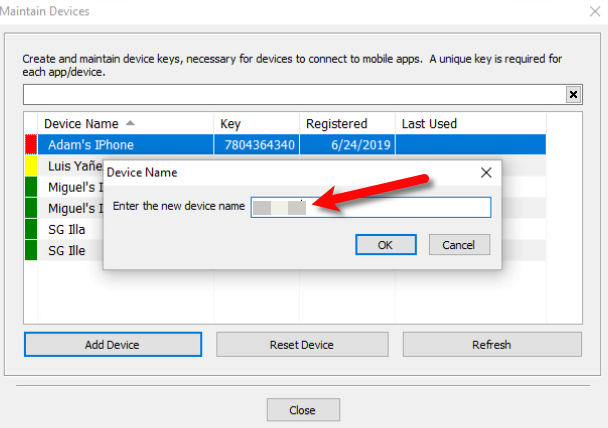
- Click the Add Device button.
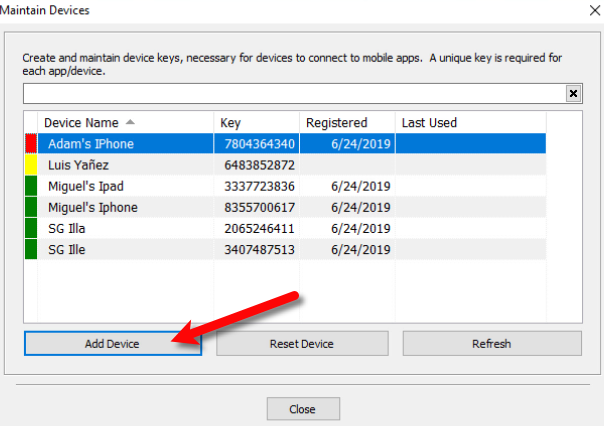
- For the Enter the new device name field, input whatever you would like to name your iDevice. This is purely cosmetic and is for identification purposes.
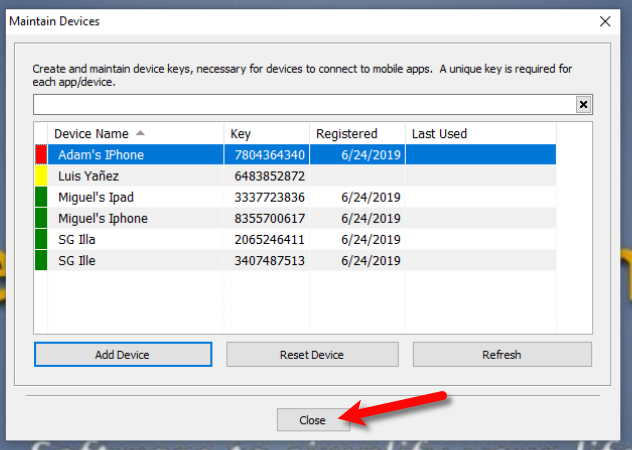
- Click the Close button.
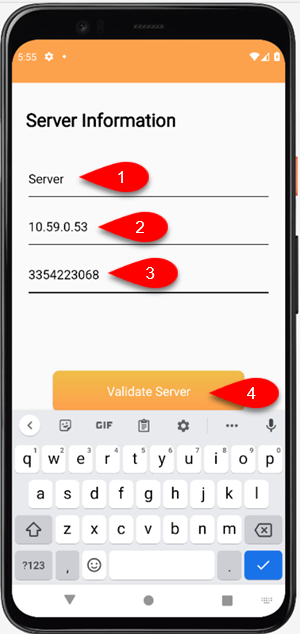
- Fill in the Description, the name Server is usually fine. Then fill in the Server Address and the Device Key from what you recorded from your Server computer. Then, tap the Validate Server button.
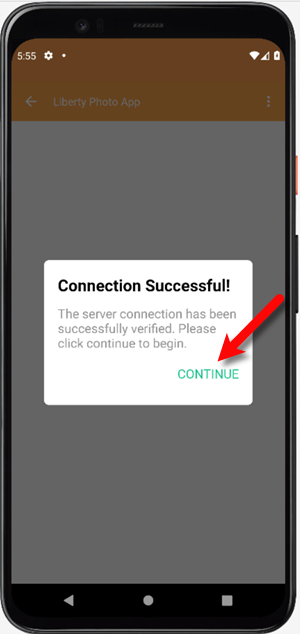
- Tap the Continue button.
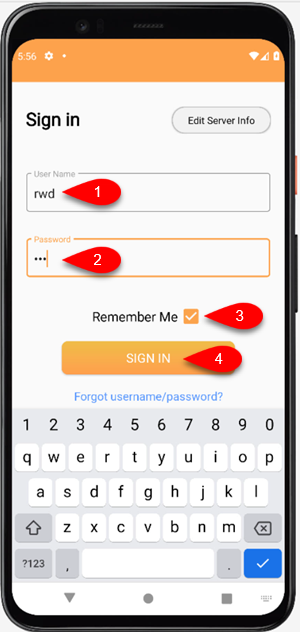
- Sign in with your Username and Password, then tap the Remember Me checkmark box if you want the application to remember your login details. Finally, click the Sign In button.
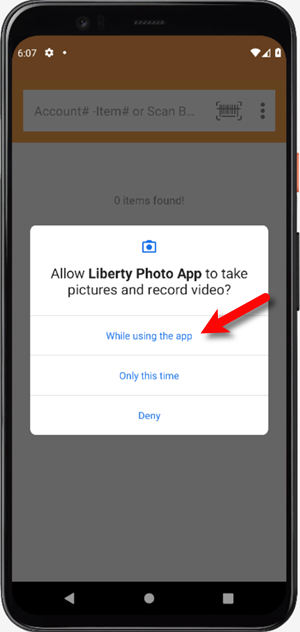
- Tap the While using the app button when prompted if you want to allow Liberty Photo App to take pictures and record video.
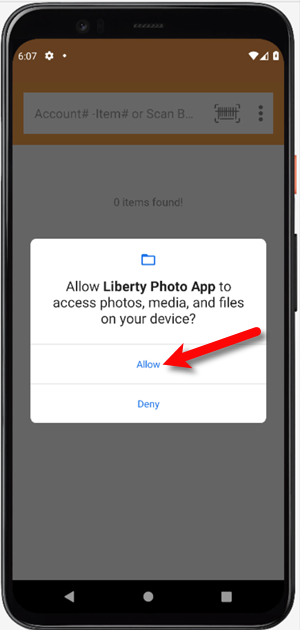
- Tap the Allow button when prompted if you want to allow Liberty Photo App to access photos, media, and files on your device.
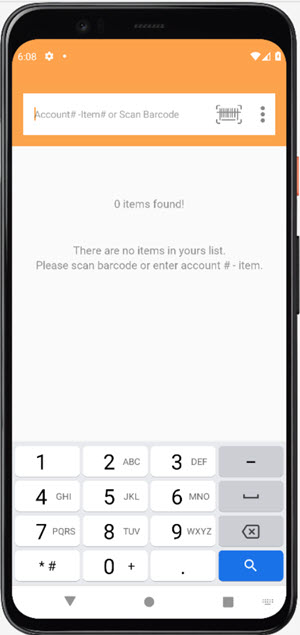
- You are now ready to start using the Liberty Photo App!


Next Article In Section
Click the following link to move to the next article in this section:
How To Use The Liberty Photo App for Android Overview
Related Topics
How To Download and Setup The Liberty Photo App for Android How To Use The Liberty Photo App for Android Overview Opening The Liberty Photo App Android How Use The Camera To Add Images To Items By Using Account - Item Number Android How To Add Images To An Item Using A Barcode On The Tag Android How To Delete Images From The Liberty Photo App Android How to Edit A Photo That Is Attached To An Item Android How To Add Images Using the Import Feature (From Local Disk and Other Sources) Android Editing The Settings Within Liberty Photo App Android Placing a Watermark Image On Your Pictures Android Changing Which Server You Want To Connect To Android